
Unfortunately, Apple gives us no jurisdiction within the App Store, so we aren't able to cancel for you nor do we have the ability to change or refund a subscription from the App Store. However, this is something you can do from your iOS device. Here's how:
Cancel a subscription from Apple
If you can't find the subscription that you want to cancel
How to cancel a subscription on your iPhone, iPad, or Apple Vision Pro
-
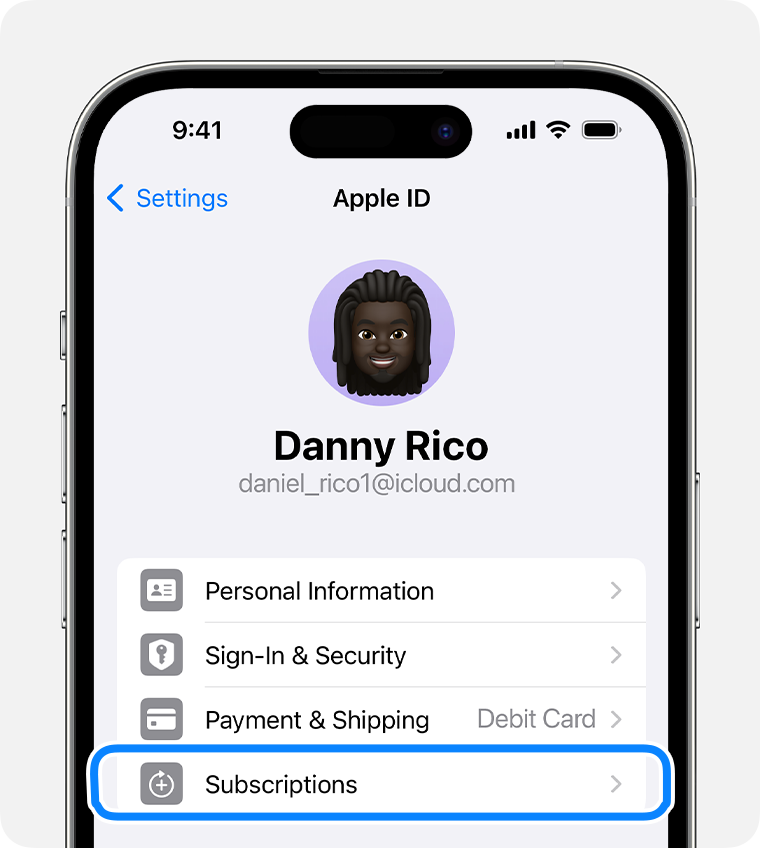
Open the Settings app.
-
Tap your name.
-
Tap Subscriptions.
-
Tap the subscription.
-
Tap Cancel Subscription. You might need to scroll down to find the Cancel Subscription button. If there is no Cancel button or you see an expiration message in red text, the subscription is already canceled.
If you can't find the subscription that you want to cancel
Cancel a subscription on your Mac
-
Open the App Store app.
-
Click your name. If you can't find your name, click Sign In.
-
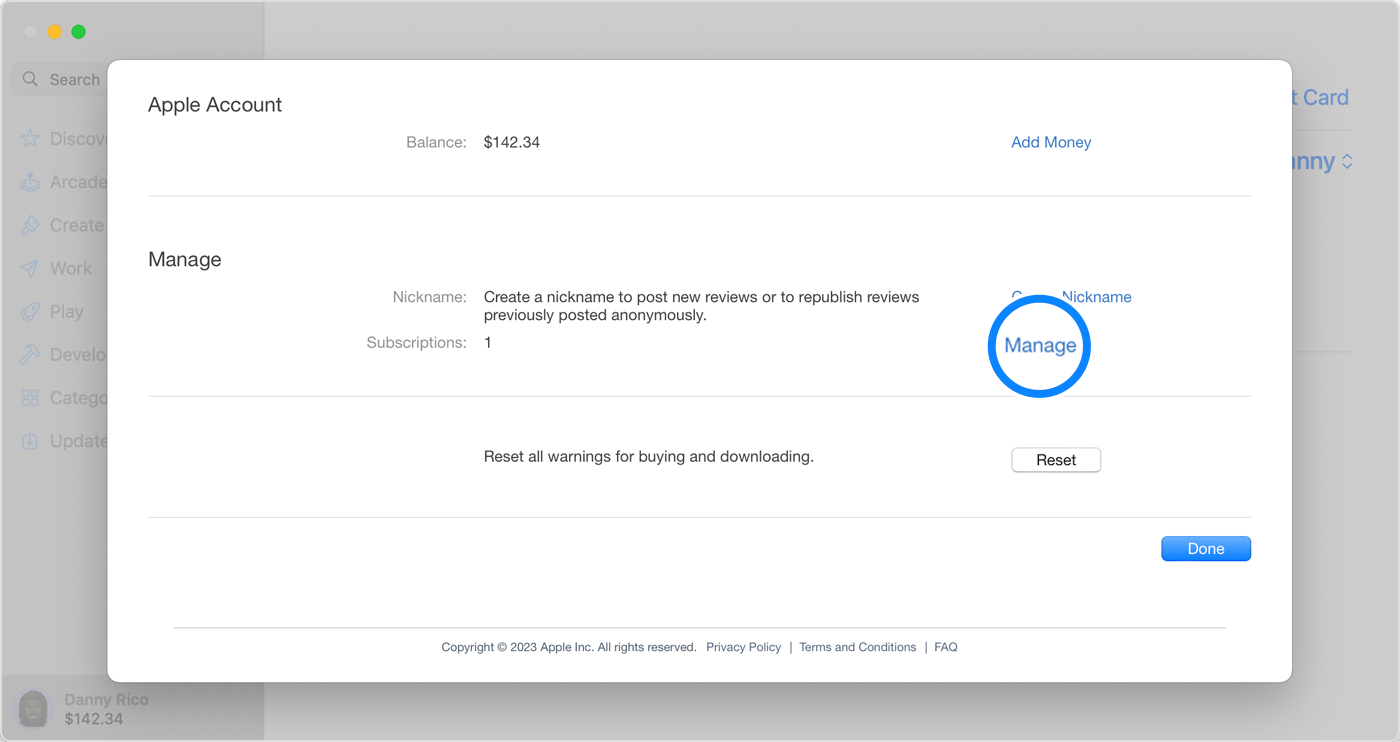
Click Account Settings.
-
Scroll to Subscriptions, then click Manage.
-
Next to the subscription, click Edit.
-
Click Cancel Subscription. If there is no Cancel or Cancel Subscription button, the subscription is already canceled.
If you can't find the subscription that you want to cancel
Cancel a subscription on your Windows PC
You can cancel Apple Music on the web, and cancel Apple TV+ on the web. To cancel any subscription billed by Apple, use the Apple Music app or Apple TV app for Windows.
Use the Apple Music app or Apple TV app for Windows
-
On your Windows PC, Open the Apple Music app or Apple TV app. Learn how to get Apple's apps for Windows.
-
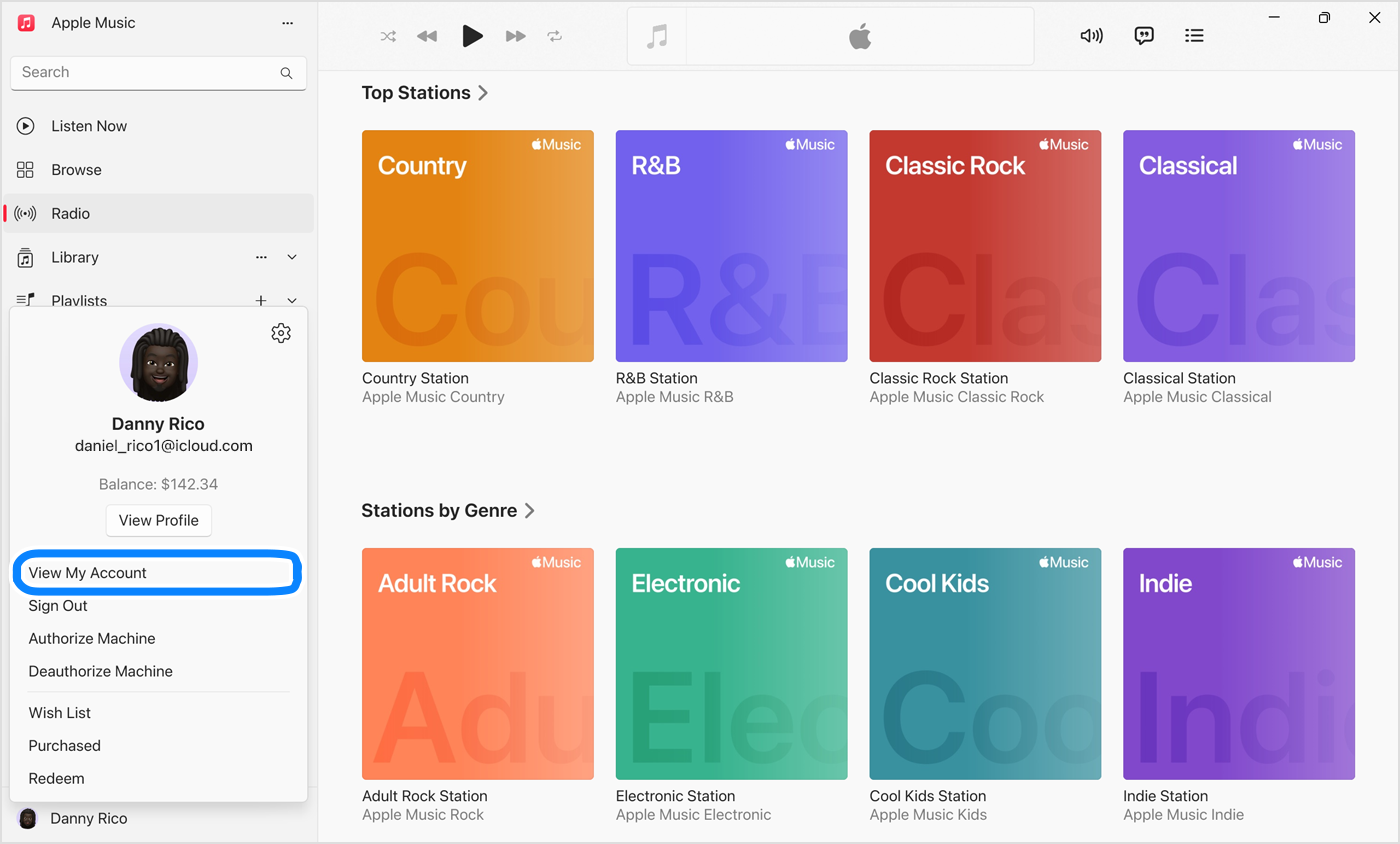
Click your name at the bottom of the sidebar, then choose View My Account. You might need to sign in with your Apple ID.
-
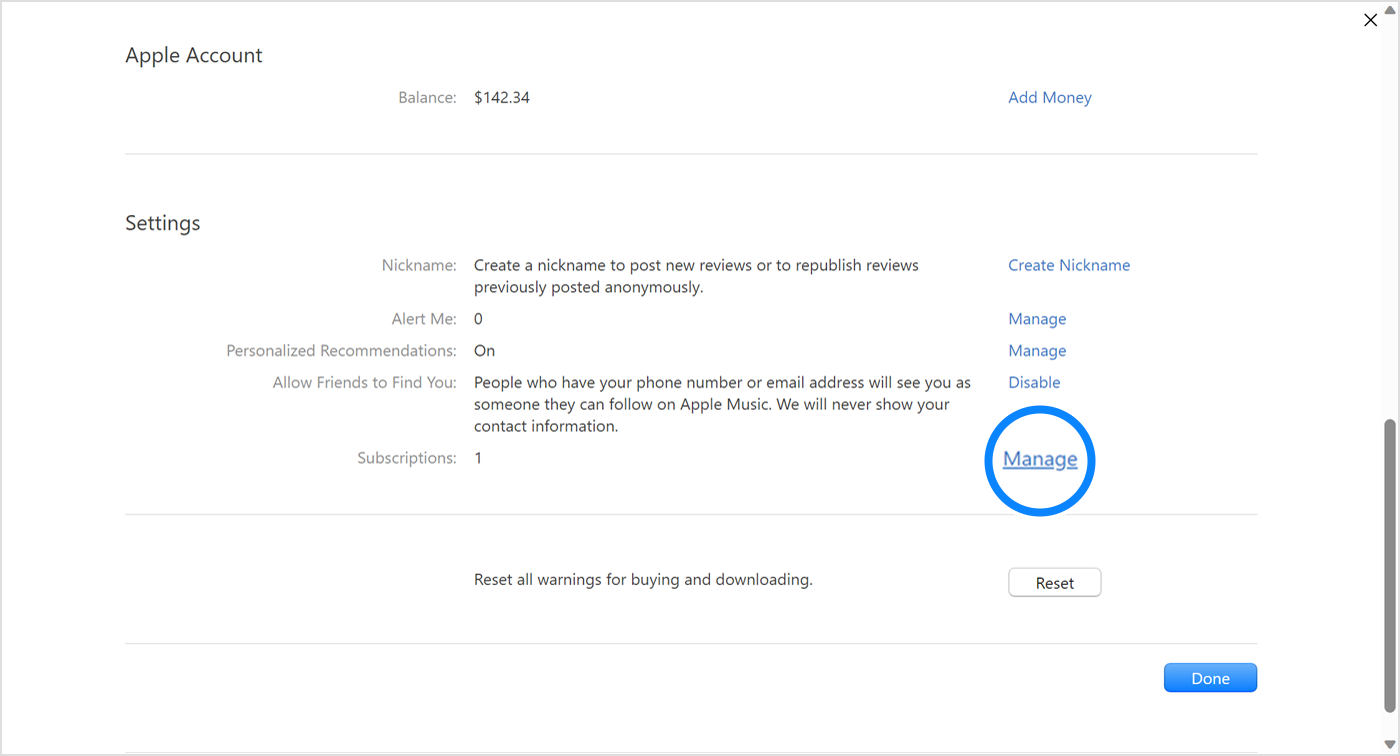
Scroll to the Settings section. Next to Subscriptions, click Manage.
-
Find the subscription that you want to cancel, then click Edit.
-
Click Cancel Subscription. If there is no Cancel or Cancel Subscription button, the subscription is already cancelled.
If you have an older version of iTunes for Windows
-
On your Windows PC, open iTunes.
-
From the menu bar at the top of the iTunes window, choose Account, then choose View My Account.
-
Scroll to the Settings section. Next to Subscriptions, click Manage.

-
Find the subscription that you want to cancel, then click Edit.
-
Click Cancel Subscription. If there is no Cancel or Cancel Subscription button, the subscription is already canceled.
If you can't find the subscription that you want to cancel
Subscriptions on your Android device
You can cancel Apple Music on the web, and cancel Apple TV+ on the web. To cancel other subscriptions billed by Apple, use a Windows PC or Apple device.
Can’t find the subscription that you want to cancel?
You can cancel iCloud+ in your iCloud storage settings.
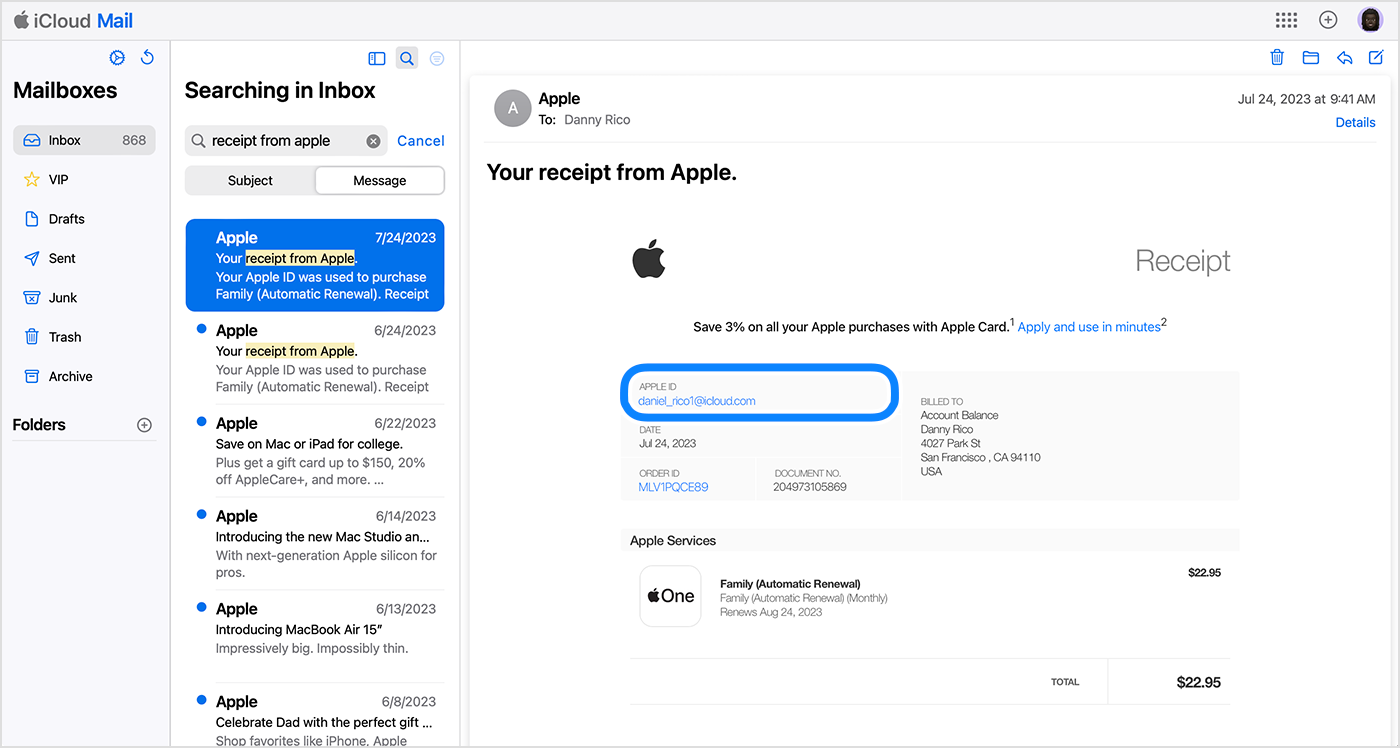
If you aren't trying to cancel iCloud+, find your receipt:
-
Search your email for the words "receipt from Apple" or "invoice from Apple".
-
On the receipt for the subscription, check which Apple ID was used.
-
If a family member's Apple ID appears on the receipt, ask that family member to use the steps in this article to cancel the subscription. You can’t cancel a family member's subscription.
-
If another Apple ID that you use appears on the receipt, sign in with that Apple ID and use the steps in this article to cancel the subscription.
-
If you can't find a receipt from Apple for the subscription, you might have bought the subscription from another company. To find out which company bills you, check your bank or credit card statement. To cancel the subscription, you must contact the company that bills you for the subscription.
Contact Apple Support
More about canceling subscriptions
-
If you signed up for a free or discounted trial subscription and you don't want to renew it, cancel it at least 24 hours before the trial ends.
-
Canceling subscriptions is slightly different in some countries and regions. Learn about special circumstances for Germany, Israel, South Africa, and Türkiye.
We hope this helps! Of course, if you need further assistance, our Customer Success Team at support@hltcorp.com would be glad to help.
Comments
0 comments
Article is closed for comments.